


Guides TYROS
Full control on stage
For more than a decade I have been building and developing styles and living the world of keyboards every day. Over the years, I have encountered almost every question, problem and point of confusion involving Yamaha keyboards. That is why I created a clear, structured series of guides, from the basics to advanced settings, with precise, accessible explanations so that you can understand, learn and feel fully in control of your keyboard.
Which series is your keyboard from?
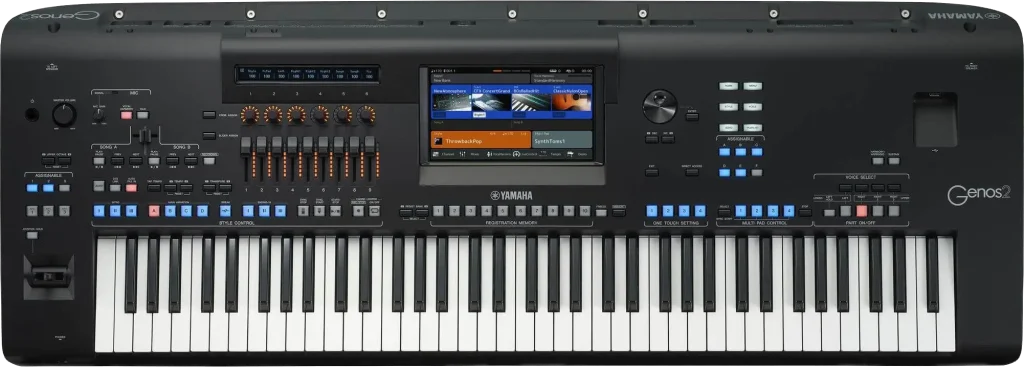
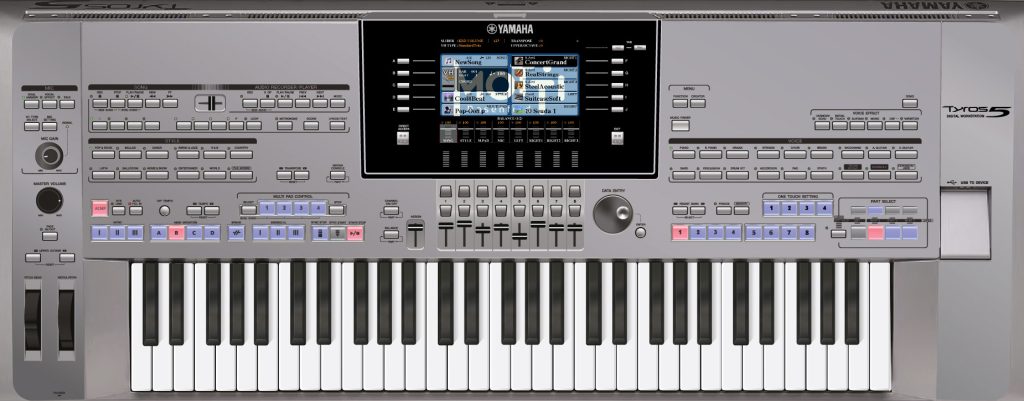
Suitable for all models in the series
Suitable for all models in the series
Filter by:
GENOS
TYROS




Looking for something specific?
0


General content
Explanation of how to use the guides correctly
1
General settings
Exporting an info file from the keyboard to create samples suited to your specific keyboard.
2
Downloads
Downloading, extracting and correctly copying styles and samples to a USB flash drive.
3
Installations
Restoring a BUP backup file on the keyboard. The restoration includes everything in USER and the settings.
4
Installations
Installing samples from a CPI file on the keyboard.
5

Organization
Deleting styles frees up space and keeps folders organized.
6
Organization
Copying styles, voices, registration banks or any other file between different folders or between USB and the internal memory.
7
Installations
Transferring MIDI settings or just the effects, without installing a complete installation file.
8
Organization
Renaming style, registration bank and recording files.
9
General settings
Resetting the keyboard to factory settings without deleting files.
10
Practical use
Maintaining a constant tempo when switching between styles while a style is playing.
11
Practical use
Assigning style folders for quick access from the STYLE buttons.
12
General settings
Changing or disabling the automatic shutdown time.
13
General settings
The Split Point setting determines the last key used for automatic accompaniment on the left and the first key used for solo playing with the right hand.
14
Explanations
Selecting the chord recognition method for the left hand.
15
General settings
Creating a complete BUP backup containing styles, voices, settings and USER data for safekeeping or transfer to another keyboard.
16
General settings
Determining what is heard when playing with the left hand while the style is off: accompaniment only, or bass and chord as well.
17
General settings
The Pitch Bend Range setting determines how many tones the pitch rises or falls when you use the pitch bend wheel.
18
Practical use
Connecting a sustain pedal to the keyboard and setting its function.
19
Practical use
This setting determines whether the headphones work alone or alongside the audio outputs.
20
General settings
Controlling the keyboard's touch sensitivity by changing the strength of its response to key presses, or disabling sensitivity completely.
21
General settings
Determining whether the on/off state of accompaniment channels is retained when switching between styles.
22
General settings
A setting that disables the effect of Touch on the left-hand area while playing with a style.
23
Getting to know the keyboard
Explanation of the Direct Access button.
24
General settings
You can enter a personal name to be displayed automatically whenever the keyboard turns on.
25
General settings
Setting a lock code to prevent unwanted use of the keyboard.
26
General settings
You can control the metronome's volume and change the sound of the first beat to distinguish it from the others.
27
General settings
Setting the keyboard's internal volume when the keyboard sounds quiet despite a high external volume setting.
28
Practical use
Removes every effect from the voice so that it sounds completely dry.
29
Practical use
Changing the octave in two ways: through the Voice settings or using UPPER OCTAVE.
30
General settings
How to control the duration and response of the Fade In and Fade Out buttons on the keyboard.
31
Getting to know the keyboard
The Balance button controls the volume balance between your playing and the automatic accompaniment (Style), among other things.
32
Tips
The Tyros keyboard can display a complete list of all chord types: an excellent learning tool for understanding chord structure and improving musical knowledge.
33


General settings
Pedal setup: a general explanation of the useful options in the pedal settings.
34
Organization
On the keyboard, you can save a voice in a registration bank together with a style, tempo and additional settings, so that everything loads automatically with the voice.
35
Explanations
Enabling the FREEZE button and setting which data remains unchanged when switching between registration banks.
36
Practical use
You can assign a voice for left-hand playing (Left), such as bass, and save the Bass Chord state together with the voice.
37
Organization
Deleting voices from a registration bank to organize it or create a new bank.
38
Practical use
All steps for working with the keyboard's recording system: starting, stopping and playing a recording, and renaming it.
39
Practical use
Creating an organized playlist that allows several audio files to play continuously and switches between them automatically.
40
Practical use
Routing each channel separately to the keyboard's audio outputs (L/R/1/2) for recording or a split connection to the sound system.
41
Practical use
To get an authentic Middle Eastern sound, we enable the quarter-tone system and adapt it to the scale being played.
42
General settings
A setting to display each sample's exact location in the software: LSB, MSB and Program values.
43
Practical use
Allows you to set whether entry into a style includes a Fill or skips it, as needed.
44
Tips
Adding a personal background image to the keyboard screen for branding and personalization.
45
Installations
Installing, connecting and fitting the keyboard's internal sampler card.
46
General settings
Resetting the HD1 drive deletes all files and samples stored on it, leaving it completely empty.
47
General settings
A complete reset deletes all personal data from the keyboard: styles, voices, files and saved settings.
48
General settings
Setting fixed values that remain unchanged when switching between voices.
49
General settings
Checking the firmware installed on the keyboard and displaying its version number.
50
Downloads
Downloading the official firmware update file from the Yamaha website for the keyboard model, to install the latest version.
51
Installations
Installing new firmware when the keyboard's version is out of date, for bug fixes and general improvements.
52
Troubleshooting
Keeping the same style section — INTRO, A, B, etc. — when switching to another style, instead of automatically moving to a fixed section.
53
General settings
Choosing what the Transpose button affects when you change key.
54
Building and creating
Controlling, balancing and saving the volume of each voice (Right1, Right2, Right3, Left).
55
General settings
After Touch changes the voice according to the pressure applied after playing a note.
56
Tips
Creating a playlist to switch neatly and conveniently between songs and styles in a predefined order.
57
Tips
Creating a playlist makes it easy to switch between songs and styles in a predefined order.
58
Tips
Creating a playlist makes it easy to switch between songs and styles in a predefined order.
59
Downloads
Downloading Yamaha's official software for managing samples, voices and expansion packages.
60


Installations
Combining samples and expansion packages into a CPI/PPI file for installation on the keyboard.
61
Building and creating
Working with Yamaha Expansion Manager: loading samples, building packages and importing them to the keyboard.
62
Building and creating
For the Motif to work in sync with the Tyros, appropriate MIDI settings are needed.
63
Building and creating
In Voice Set, you can increase the voice's volume beyond the level shown in the external mixer.
64
Building and creating
Explanation of Voice Set, the sound editing menu.
65
Building and creating
Allows you to select an effect by category (reverb, delay, compressor and more) to suit the voice precisely.
66
Building and creating
You can create a new Multi Pad from an external recording: a previously prepared wav file.
67
Building and creating
With Multi Pad, you can create short loops to play alongside a style or additions to the style.
68
Building and creating
Creating a new style on the keyboard and setting its initial data, switching between channels, deleting channels and deleting specific notes.
69
Building and creating
For each channel, you can select a part from another existing style on the keyboard.
70
Building and creating
Choosing voices when building styles and recording parts.
71
Building and creating
In this part, we learn how to use the Quantize menu to align notes to the desired note length.
72
Building and creating
At this stage, we learn to set parameters for each style channel and understand the meaning of the Play Root field.
73
Building and creating
We understand what the NTR and NTT settings mean, how they work and what each option does in practice.
74
Building and creating
The note range: setting High Key and Note Limit.
75
Building and creating
This setting determines how notes behave when the chord changes.
76
Building and creating
The Bar Copy and Bar Clear commands for duplicating or deleting bars.
77
Building and creating
Adding movement and dynamics to a style while building it, such as PANPOT and more.
78
Building and creating
Resetting data recorded in style parts, such as Expression, Brightness, Pan and more.
79
Building and creating
You can align the strength of notes in a style by percentages to balance the dynamics and create a uniform velocity value across all notes.
80
Building and creating
Building styles — Part 13 — EDIT — the Filter screen: controlling what appears in the editing screen
The Filter screen within the editing screen (EDIT), where you can control exactly which types of information are displayed.
81
Building and creating
Each note is positioned by BAR, BEAT and CLOCK for maximum control over its timing.
82
Building and creating
In Step Record, you can enter notes manually by length, pitch, volume and exact position.
83
General content
Additional editing options for notes and parameters in the EDIT screen.
84
Building and creating
Smart control with Expression for changing dynamics.
85
Building and creating
You can change the voice by changing the LSB, MSB and Program values, which determine the sample's location.
86
Building and creating
DSP 1 and DSP 8/9 provide effects applied to the entire style or to specific channels within it.
87
Building and creating
Adjusting channel volumes in a style to balance its different parts correctly: drums, bass, accompaniment and more.
89
Installations
Installing external software that automatically balances all channels in a style.
90
Building and creating
Increasing or decreasing the volume of the entire style at once through the software.

12/05/2026 12:24 pm
You saved me with this guide. I was in the middle of a wedding and a fishbone got stuck in my little finger; I didn't know what to do. Yerucham the clarinet player referred me to you, and together we solved it in a few minutes. It was quick, helpful and amazing. A minute later, the groom came in and slipped on a banana. We both know that has nothing to do with either of us, but the sound of the sirens balanced perfectly with the style, which is an enormous wonder.
I used:
12/05/2026 12:24 pm
You saved me with this guide. I was in the middle of a wedding and a fishbone got stuck in my little finger; I didn't know what to do. Yerucham the clarinet player referred me to you, and together we solved it in a few minutes. It was quick, helpful and amazing. A minute later, the groom came in and slipped on a banana. We both know that has nothing to do with either of us, but the sound of the sirens balanced perfectly with the style, which is an enormous wonder.
I used:
12/05/2026 12:24 pm
You saved me with this guide. I was in the middle of a wedding and a fishbone got stuck in my little finger; I didn't know what to do. Yerucham the clarinet player referred me to you, and together we solved it in a few minutes. It was quick, helpful and amazing. A minute later, the groom came in and slipped on a banana. We both know that has nothing to do with either of us, but the sound of the sirens balanced perfectly with the style, which is an enormous wonder.
I used:
12/05/2026 12:24 pm
You saved me with this guide. I was in the middle of a wedding and a fishbone got stuck in my little finger; I didn't know what to do. Yerucham the clarinet player referred me to you, and together we solved it in a few minutes. It was quick, helpful and amazing. A minute later, the groom came in and slipped on a banana. We both know that has nothing to do with either of us, but the sound of the sirens balanced perfectly with the style, which is an enormous wonder.